
I recently built my own home lab which lives on Hyper-V managed by System Center Virtual Machine Manager 2008 thanks to my Technet Subscription. I wanted to be able to manage this lab when I am at client sites in case I ever need to test something. Port 3389 is often scanned by hackers but Server 2008’s RDP is pretty secure just as Server 2003’s RDP was if you always keep your machine up to date due to RDP being encrypted traffic. But 3389 is often blocked on corporate firewalls. So I elected to use SSH listening on port 443 to RDP into my lab. How? Read on…
After bringing up my server, installing Hyper-V, patching it, and all that other good stuff, I installed FreeSSHD which is a free download here.
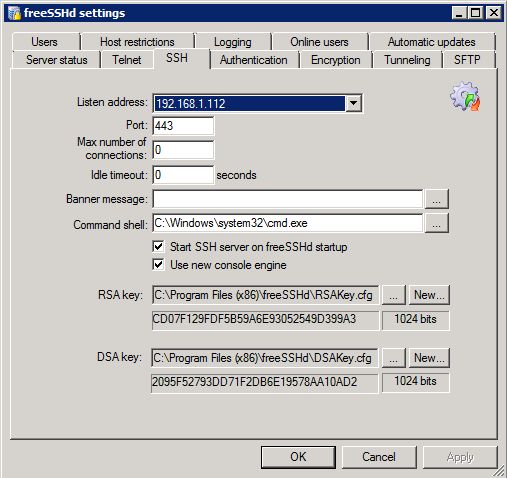
The first thing I did was configure FreeSSHD to utilize port 443 instead of port 22.
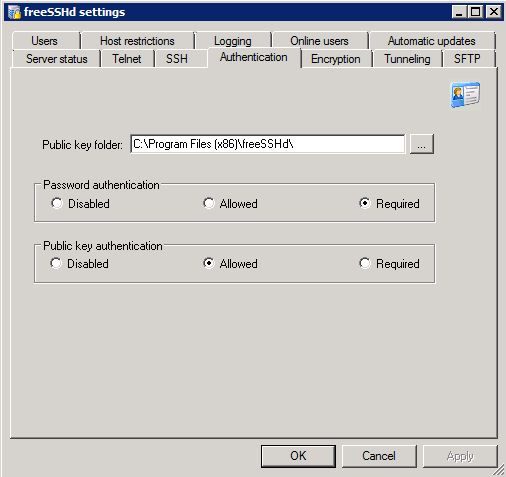
There are two ways to authenticate when we SSH in. One is Password Authentication and one is with Public Key Authentication. I elected to utilize Password authentication only and because of that, I set it to required. We can still use Public Key Authentication if we want but I decided Password Authentication is good enough for my needs.
I want to utilize port forwarding when I am utilizing an SSH client. You will see how we take advantage of local port forwarding when I show our Putty configuration below.

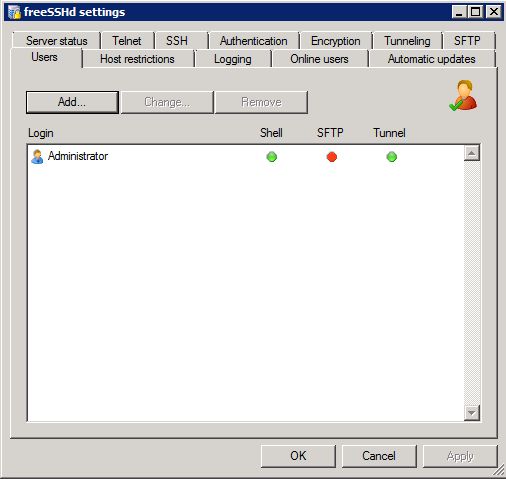
We then have to add the account we want to grant access to use SSH. Because this is a lab, I elected to use the Administrator account. In a production environment, the Administrator account should not be used as it’s not a good security practice.
The next thing we’ll want to do is set up a port forwarding rule on our home router. Portforward.com is a great site to assist you in how to forward your public IP traffic to your private IP on your lab server for port 443.
This means that any time you want to SSH in, you’ll have to SSH into your public IP. This can be annoying if you have a DHCP IP. Instead of paying extra monthly fees for a static IP from your ISP and not contributing to the “we need to go to IPV6” cause, keep your DHCP address and use something like Dynamic DNS (DynDNS.org).
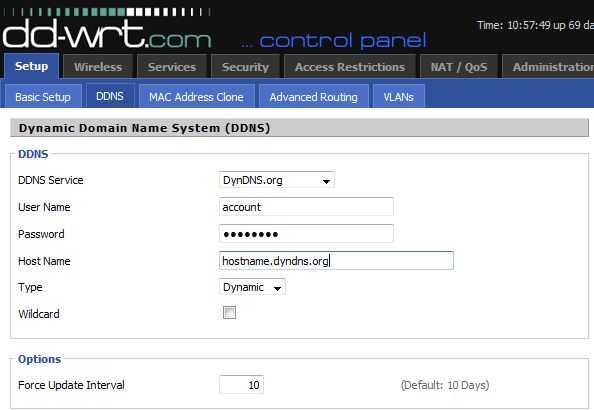
My home router is a Linksys router in which I am using the DD-WRT software. After signing up for a DynDNS.org account, you can tell your router to update your Dynamic DNS account so you can always use DNS and know it’ll hit the correct public IP.
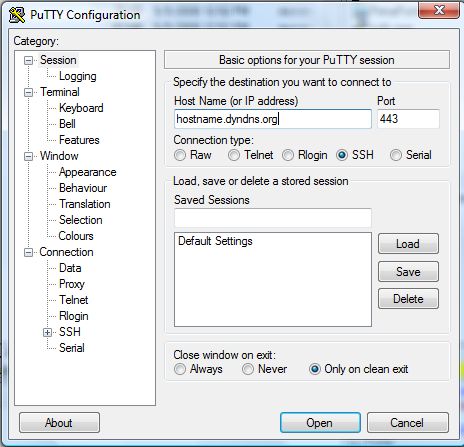
Now let’s load up PuTTY and check out the configuration.
We’ll want to specify the hostname we are connecting to as well as port 443 since that’s what SSH is listening on and that’s what we’re port forwarding.
The final configuration step of Putty is to set up our tunnels.
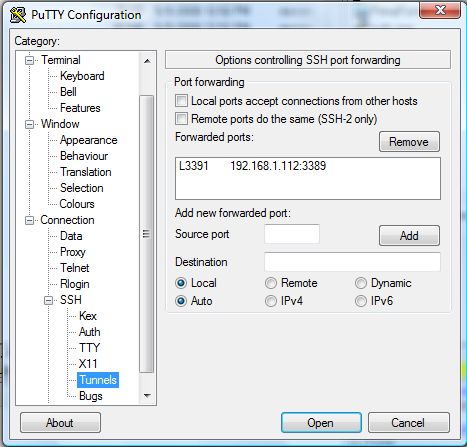
This tunnel essentially allows us to map port 3391 to port 3389. Essentially the way this works is when we PuTTY to our server, we have a secure connection to our server. Because we enabled local forwarding on our SSHD server, we can create a tunnel rule in PuTTY so if we RDP to port 3391 it will map to 3389 on our server.
So after clicking Open we will get prompted for our Administrator credentials. You must use an account in which you granted access in FreeSSHD.

After hitting enter and being connected, we can now launch our RDP client. Because we used our forwarded port from 3391 to 3389, we will RDP to localhost:3391 and because we created that tunnel for our forwarded port, it will automatically connect to ServerIP:3389. ServerIP is the IP that is defined in the Tunnel settings in PuTTY.
As we can see in the following screenshot, everything works as expected and we can now successfully connect to our lab via port 443, have it be secure, and not have to worry about a port being blocked as 443 is rarely blocked .

There’s one more thing to consider. Because you are using port 443 for SSHD, you obviously won’t be able to use IIS on the box and have SSL use port 443 or use other applications that listen on 443. I am using System Center Virtual Machine Manager 2008 which does utilize port 443. When you install System Center Virtual Machine Manager, it gives you the option to modify the 443 port. I elected to use port 543 instead. Everything has worked perfectly and it’s been a month or so since I’ve had my lab up this way.

One tip: you don't need to waste port 443 on the freesshd server. Just keep the standard port 20. For the port forwarding in you router, make a portforward from port 443 (from the internet) to 20 (your ssh server).
May God bless your hands!!!!
THANK YOU!
Hi Elan – great post. I have followed your instructions and get to the point where I RDP to localhost, I then see my Windows loading screen and after about 10 seconds the 'circle' stops spinning around – the session appears to hang for another 20 seconds or so before it terminates. I am connecting from a windows 7 ultimate to a windows 7 professional o/s's and can rdp with no problems when on the same subnet. Any clues where to look? event viewer is less than helpful.
I setup everything up correctly and I see the RDP login screen on my home computer. When I enter the username nad password nothing happens. The connection times out and never lets me remote to computer. Any suggestions?
Sounds like the port forwarding isn't correct since it doesn't sound like the data is getting to the box.
Why not just change the RDP listening port to 443 ?
That wouldn't accomplish anything. It would still be the same insecure protocol just listening on a different port. The goal here is to expose a secure SSH protocol over 443 and then that tunnels to RDP on the backend without RDP being exposed directly to the internet.
Hi Elan —
Have you been able to get this to work when RDPing from a 2008 R2 box to a 2008 R2 box? I guess MS 'enhanced' the security, so now the RDP client won't connect and you end up with the following in the event log:
"The program lsass.exe, with the assigned process ID 632, could not authenticate locally by using the target name TERMSRV/192.168.10.21. The target name used is not valid. A target name should refer to one of the local computer names, for example, the DNS host name."
Good work thanks for the info
I have the same problem as Steven – after I type username and password to mstsc, nothing happens and screen goes blank on remote computer. After a while I get RDP error.
I looks like some packets do not find their way to intended destination.
See also description on http://forums.devshed.com/windows-help-34/remote-desktop-via-ssh-tunnel-problem-602893.html
Hi, Looks good! I setup everything, when I connect with Remote Desktop I see the login screen but after I type my username/password nothing happens. Any ideas?
what about just to change RDP port in registery…? oO
The user account does not seem to work well with me. Does not allow me to logon, and I am sure about my password. Anyone else face this??
Hi,
I work for a company using ISA2006 proxy server which requires AD authentication. I already put my AD login & password in those required fields but it kept prompt “Proxy error 407 Proxy authentication required”. Has anyone encountered same problem ?
Mike
Awesome post! Thanks for your help. Exactly what I was looking for :)
You’re welcome. Thanks for posting!
Thank You!!! My company just started putting a lot of restrictions on the firewall and I lost my ability RDP home. With these instructions and a few minutes I was connected to home again.
Bloody fantastic. I needed a way in to my machine to access work files but the corporate firewall was a problem. I figured I’d set up port forwarding on 443 as the way to do it. But How? then I found your clear and concise instructions with all the required info and links.
Way to go :)